File compression
Lossless native compression stores supported files using fewer bytes. macOS decompresses them as they are read, without changing their contents or making you unpack anything.
Best for compressible, uncompressed user data.
Native storage optimization for Mac
Save space without deleting what you want to keep. DiskPress combines native file compression and file deduplication. Your files stay in place and open normally.
Same features in both Mac versions. Buy on the Mac App Store or get DiskPress with your Setapp subscription. Explore your options.
Built for APFS. File optimization works offline. Check macOS requirements.
Save on DiskPress and App Archiver with Storage Saver Duo.
On iPhone or iPad? Meet DiskPress for Files.
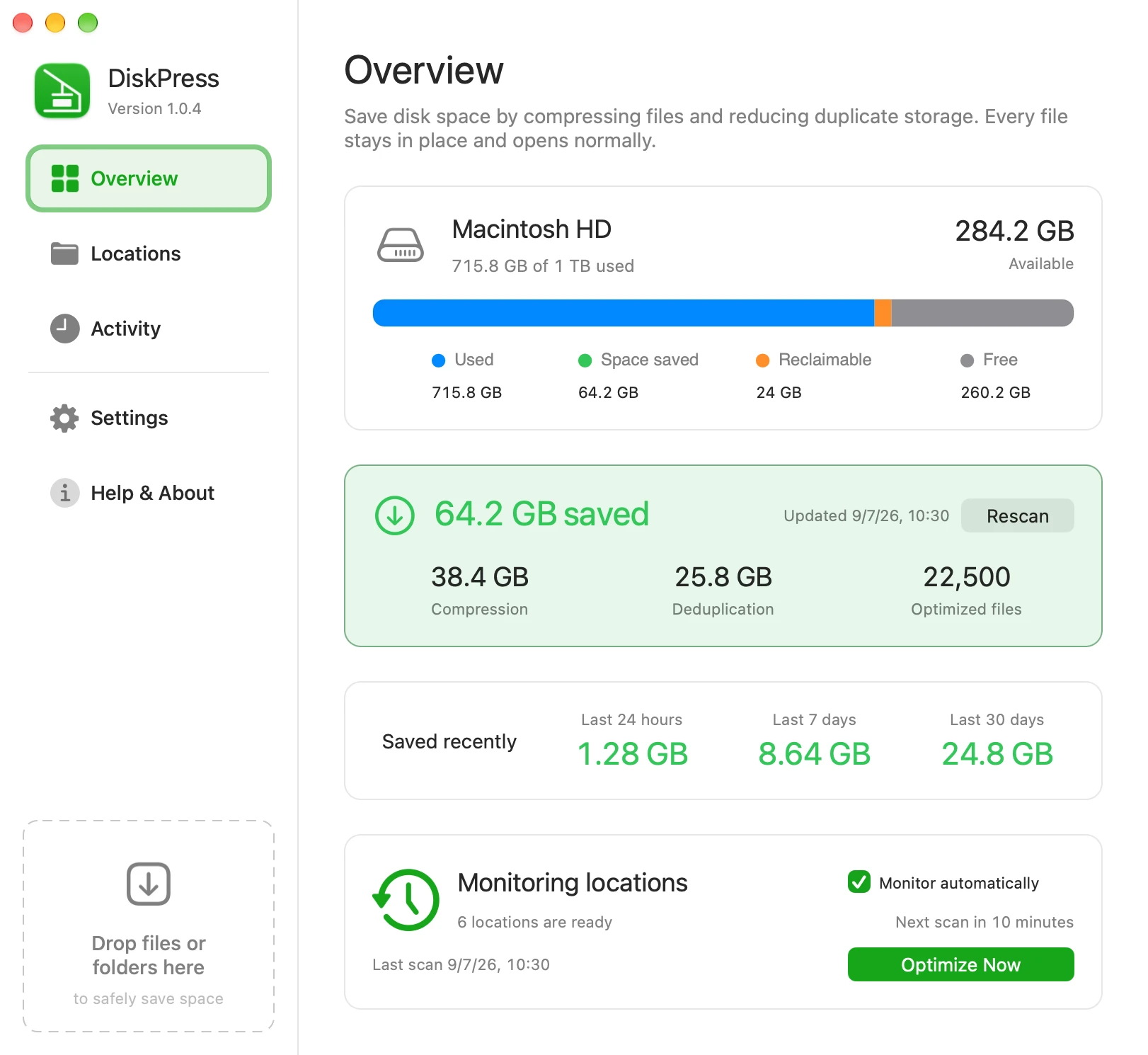
Lossless storage. Same contents and paths.
macOS reads optimized files on its own.
Your files and optimization results stay local.
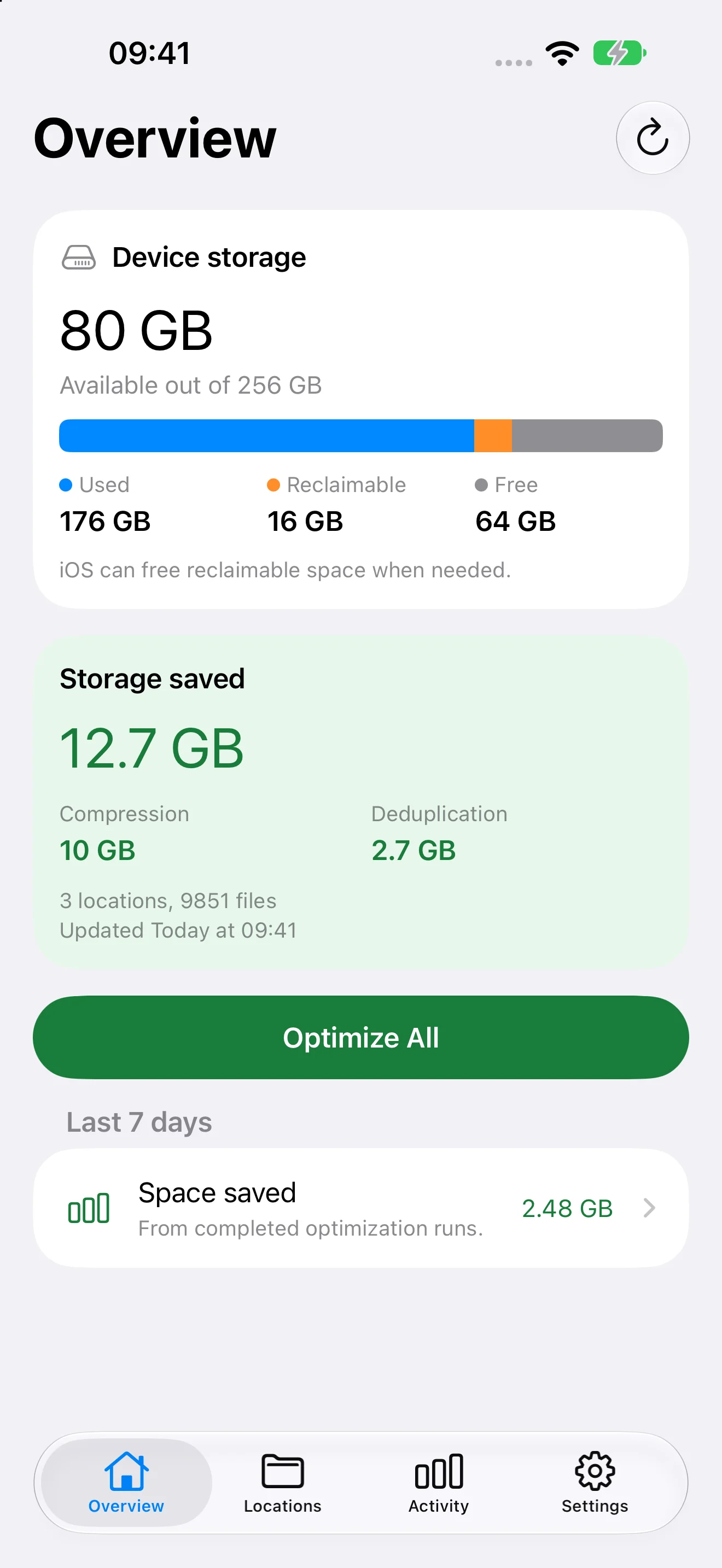
Introducing DiskPress for Files
The same compression and deduplication core, made for iPhone and iPad. Give supported local files in the Files app a smaller footprint, without packing them into archives.
Choose files or folders and start an optimization when you need it. No automatic monitoring or CLI. Local files only, not your Photos library, cloud storage, or protected paths.
For iPhone and iPad. Awaiting App Store approval, not yet available to download.
A different way to make room
Cleaning has its place. But deleting useful files is a compromise, and cleared caches can quickly grow back. DiskPress gives you another option.
A cleaner can help find things you no longer need. To get the space back, you have to let those things go.
Useful when you want less stuff.
Removing temporary data can free space now. As you keep using your apps, many caches are created again.
Useful for a temporary cleanup.
File compression and file deduplication work together to save space. Keep supported files right where they are, without deleting duplicate copies.
Made for what you want to keep.
Built into your Mac. Put to work.
DiskPress combines file compression and file deduplication in one optimization workflow. Compressible files use fewer bytes, and identical files can share those bytes for even more savings. No archive format. No special reader.
Lossless native compression stores supported files using fewer bytes. macOS decompresses them as they are read, without changing their contents or making you unpack anything.
Best for compressible, uncompressed user data.
DiskPress is not a duplicate file remover. It finds matches across all enabled saved locations, not just within each folder. Verified identical files share storage, including compressed data, through APFS copy-on-write clones, not hard links. Both files keep their paths. Editing or deleting one does not change the other.
On the same compatible APFS volume. How locations work together.
An illustrative example
Start with two identical, uncompressed 100 MB files stored separately in two different enabled saved locations on the same compatible APFS volume. Suppose file compression reduces their data by 30%.
100 MB + 100 MB, stored separately.
70 MB + 70 MB after 30% compression.
File deduplication adds to the savings by sharing the same 70 MB of compressed data.
130 MB saved. Both files stay in place and open normally.
130 MB out of 200 MB = 65% saved
Illustrative data sizes, not a benchmark or a guarantee. Actual savings vary with your files, settings, and filesystem overhead. Snapshots can delay an increase in free space. Understand combined savings.
One folder or your everyday routine
Optimize a selection now, or choose mostly stable folders to keep efficient over time.
Find your workflowDrag files or folders into DiskPress. Pin it to your Dock and drop them onto the app icon for one-time optimization, without adding a monitored location.
Add mostly stable folders, then use Optimize Now when ready. New locations can unlock extra deduplication savings in folders you already optimized. Adding a location does not immediately optimize it.
Enable automatic monitoring to revisit your enabled locations on a schedule. After the first pass, compression focuses on new or modified files. Recent-file protection gives them time to settle.
Save space thoughtfully. Optimization rewrites files at their existing paths and can add disk writes. Exclude locations with frequent new or changing files to avoid unnecessary SSD wear. For active work, wait until the files settle and optimize once. Learn how to choose suitable folders.
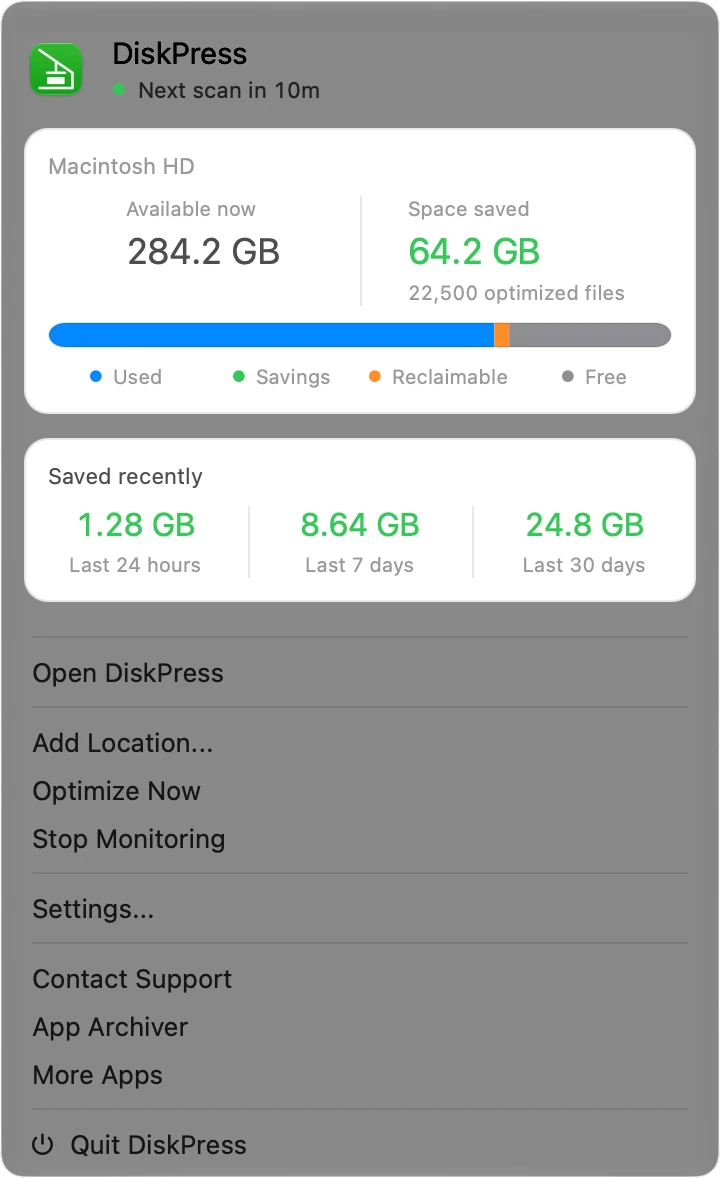
Check the selected location, file count, and existing savings before starting.
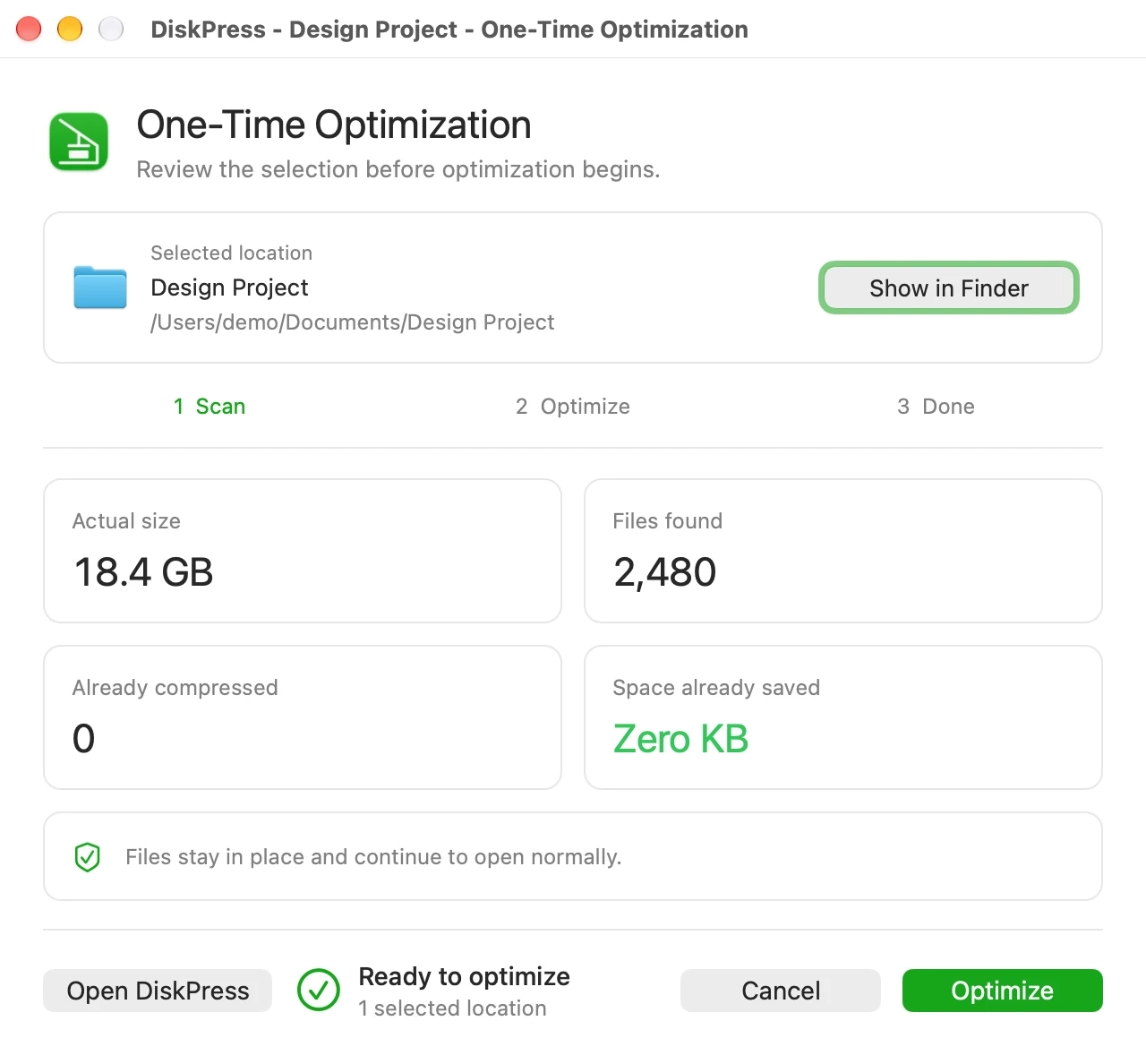
Review combined savings, file compression and file deduplication results, and any skipped files.
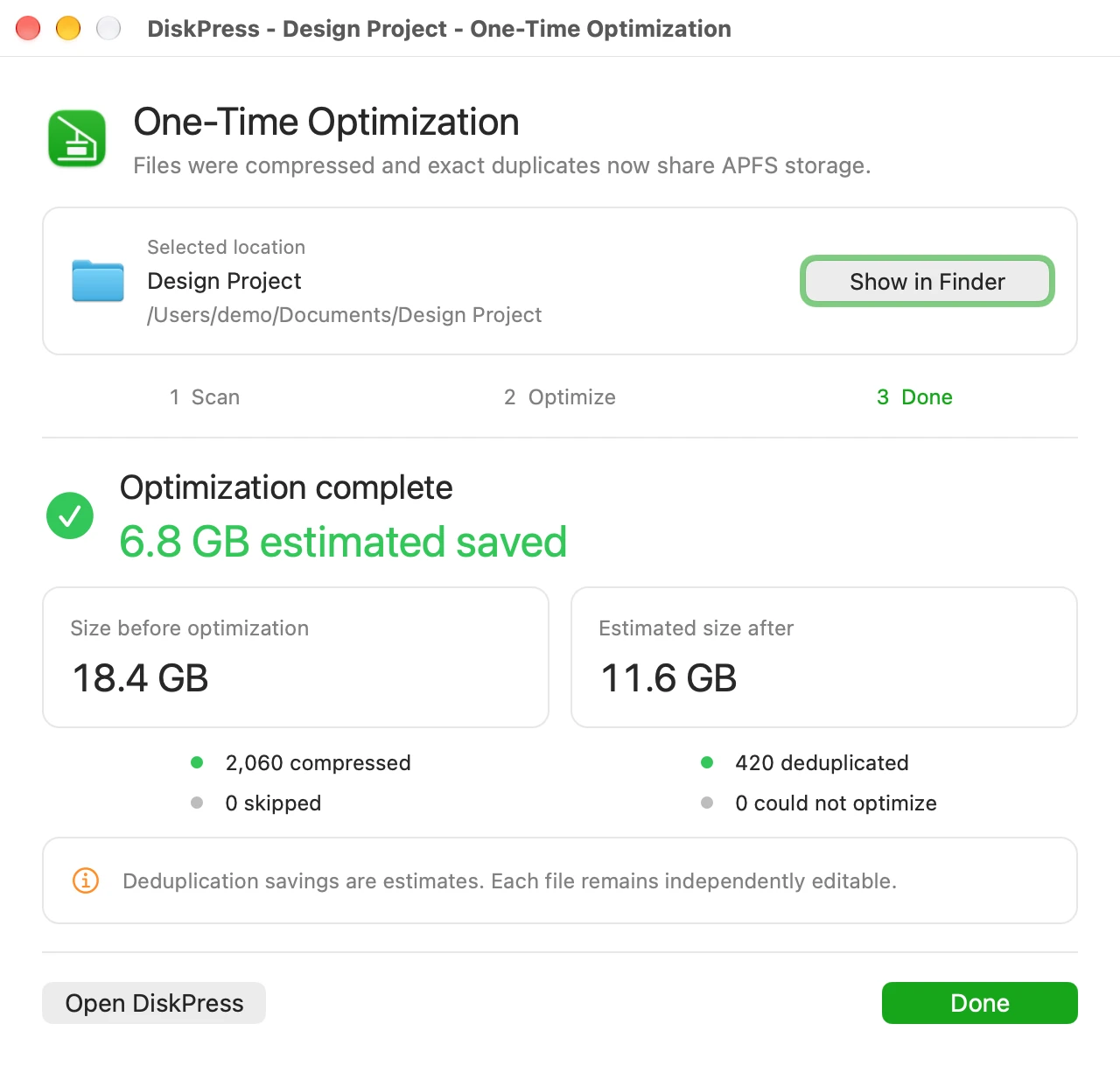
App screenshots use example data. Savings depend on your files and settings.
For scripts, workflows, and AI agents
Inspect targets, optimize files, and read settings, activity, and savings with structured JSON output. The command line uses the same local engine as the app.
Authorize your folders once in Settings. Then run commands without opening the main window or turning on recurring monitoring.
Read the CLI guide"/Applications/DiskPress.app/Contents/MacOS/DiskPress" --helpscanInspect eligibility without optimizingoptimizeCompress and deduplicate selected targetsoverviewRead storage and savings information--jsonGet structured events for automationFile optimization stays offline. Your chosen AI agent has its own data-sharing practices.
Deliberate about your data
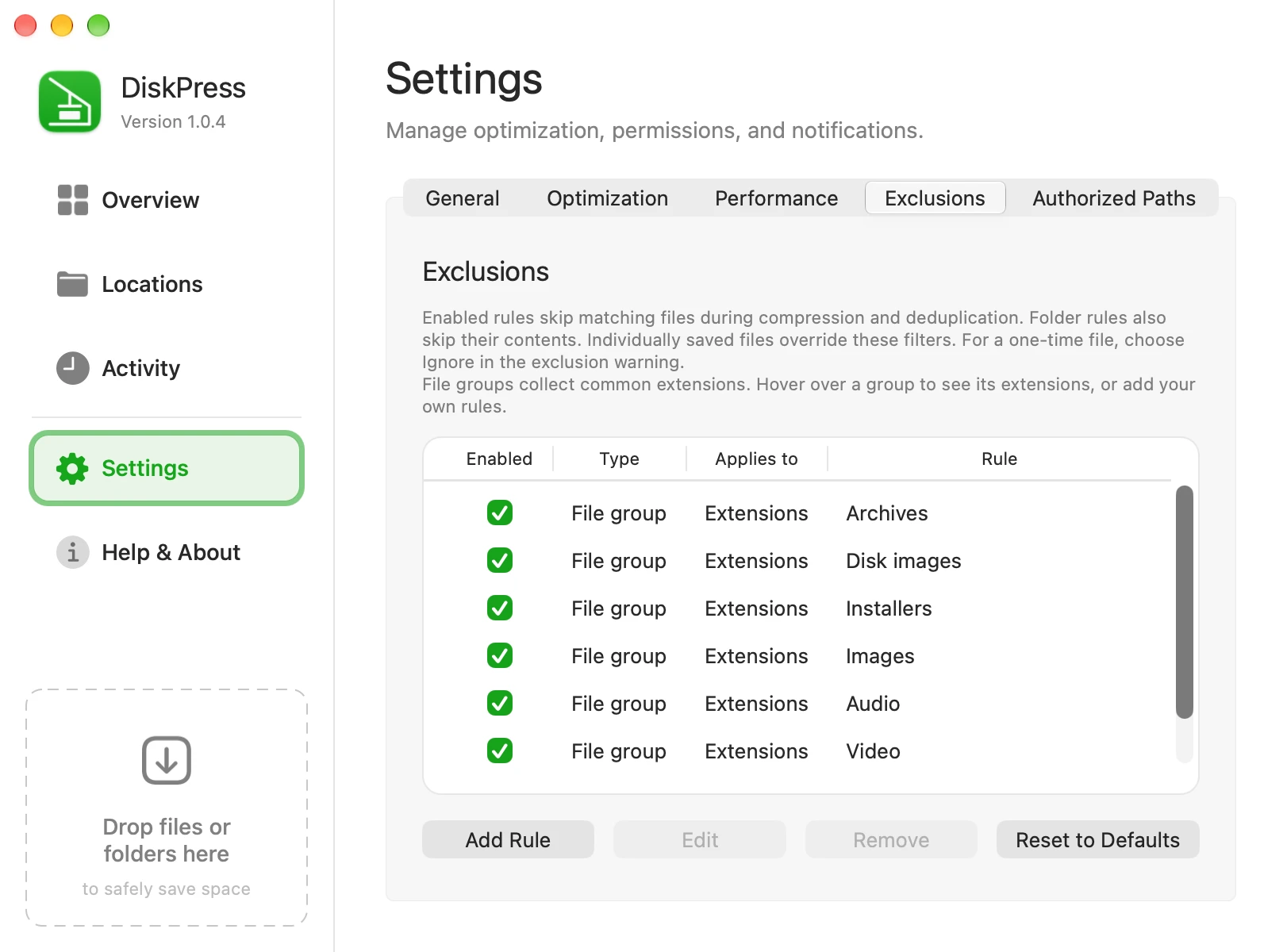
Control locations, file-size limits, minimum savings, hidden files, and editable exclusion rules. Common compressed media and archive formats are excluded by default.
Watch progress, cancel safely, and review per-file results in Activity. Rescan your saved locations to refresh current savings. Completed work stays optimized after cancellation.
No separate DiskPress account or file uploads. Verification and recovery happen locally, along with the optimization itself.
Read the privacy policyReview saved folders and their measured savings. Enable only the locations that suit your workflow.
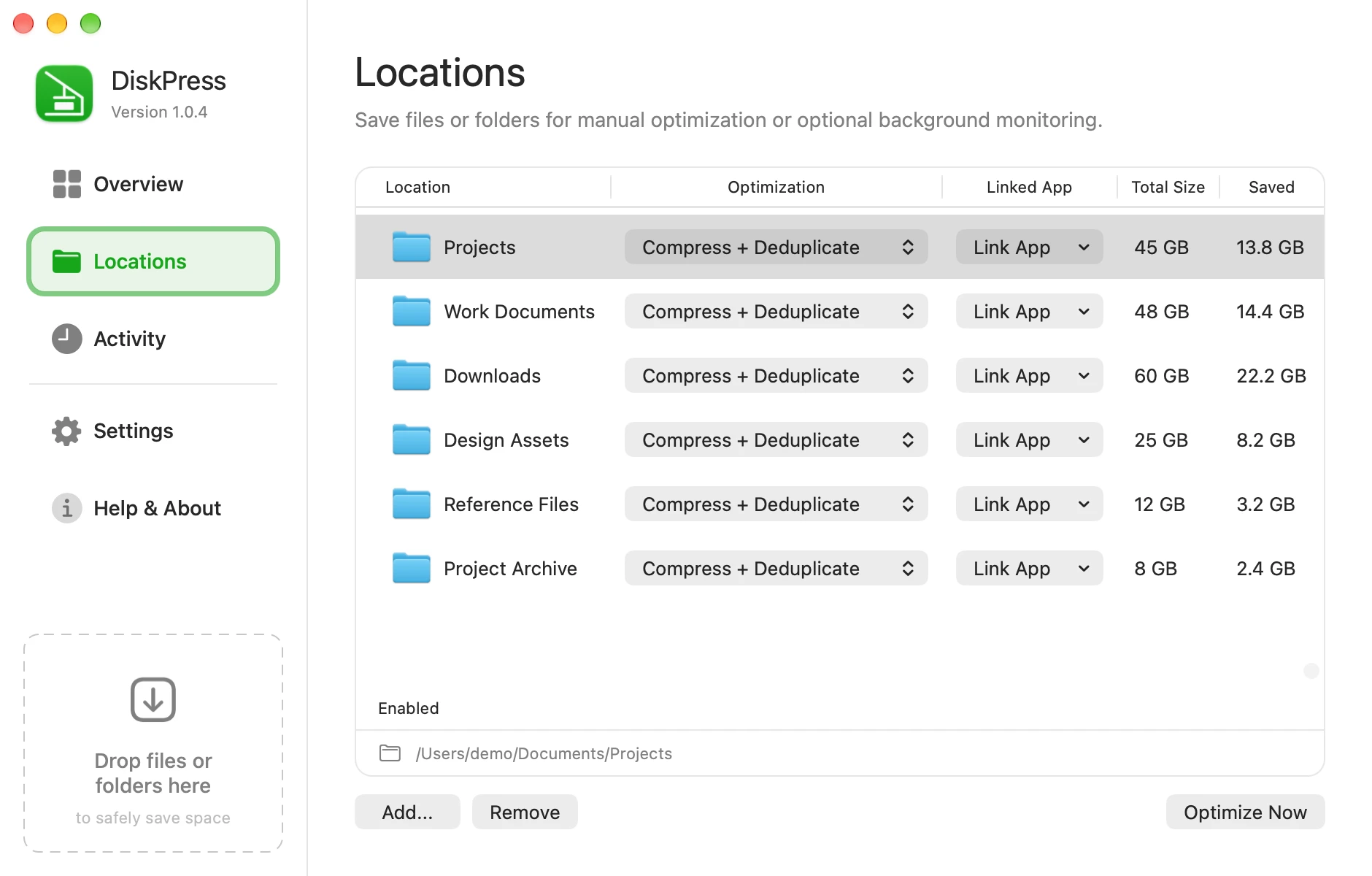
Use exclusion rules to skip unsuitable files, including common compressed media and archive formats.
DiskPress changes how files are stored. Keep an independent backup of important data. System locations, application bundles, executables, and other unsupported targets are intentionally skipped. Read about safeguards and limits.
Storage Saver Duo
Get DiskPress for Mac and App Archiver together at a reduced price compared with buying them separately. This is a Mac app bundle, separate from DiskPress for Files for iPhone and iPad.
See current pricing and system requirements on the Mac App Store.
DiskPress does not compress application bundles or executables. Optimizing installed software needs a more specialized architecture.
App Archiver is Ighor July's dedicated app for compressing, optimizing, and archiving supported Mac apps. Together, the two tools cover different parts of what you keep.
 Discover App Archiver
 A note from the developer
"I built DiskPress because deleting things is not always the answer. My Mac already had the filesystem features to store files more efficiently. What I wanted was a simple way to choose my folders and let those features keep working in the background."
"DiskPress is my way of making that routine. Keep the files you need, make better use of the SSD you already have, and stay in control of the work."
No. DiskPress is not a duplicate file remover. Both files stay available at their existing paths. After verifying identical contents, DiskPress replaces a duplicate with an APFS (Apple File System) copy-on-write clone. Each file keeps its own name and metadata.
The files share the same physical data blocks, including compressed data, instead of storing those blocks twice. Metadata still takes some space, so a clone avoids another full copy of the data, not every storage cost. Sharing requires compatible files on the same APFS volume and does not work across separate drives. Matches can span different saved locations.
You can edit or delete either file without changing the other. APFS stores changed data separately while continuing to share unchanged blocks, so later edits can use more space. DiskPress does not use hard links. See how APFS clones differ from hard links, with a 10 MB example.
Yes. DiskPress is needed to optimize files, not to read them. Native compression and APFS clone sharing are handled by macOS, without a proprietary DiskPress format or reader. Successfully optimized files remain accessible after you quit or uninstall DiskPress.
Another Mac with compatible macOS and filesystem support can read them without DiskPress. The app only needs to run for new optimization or monitoring. Editing, replacing, copying, or restoring files can change or remove local savings depending on the operation.
No. DiskPress excludes application bundles, their contents, and files with executable permissions. It is built for ordinary user files, not installed software.
Optimizing applications needs a more specialized architecture. App Archiver, also made by Ighor July, is the dedicated app for compressing, optimizing, and archiving supported Mac apps. Use DiskPress for your files and App Archiver for your apps.
File compression can make compressible user data use up to 50% less space, but this is a possible result, not a promise for your files or your whole disk. File deduplication can add further savings when identical files do not already share storage. Our combined savings example shows how 30% compression plus deduplication can reduce the data storage for two identical files by 65%.
The outcome depends on the contents, existing compression, duplicate copies, filesystem, and settings. Already-compressed media and archives may save little or nothing. The screenshots illustrate the app with example data, not a benchmark or a guaranteed result. Deduplication savings are estimates of shared storage, and a saved-space total is not a guarantee of an identical increase in macOS available space.
DiskPress does not upload your files, filenames, or optimization results. File optimization works offline in both the Mac App Store and Setapp versions. Settings, authorizations, Activity, recovery records, and savings measurements stay on your Mac.
The Mac App Store version has no in-app usage analytics SDK and needs no separate DiskPress account. The Setapp version includes Setapp activation and app-usage reporting, including menu bar interactions. Setapp license checks may require internet access, and usage reports can be sent when you reconnect. Local file processing does not mean the Setapp version is telemetry-free.
If an application integrity check fails, DiskPress for Mac automatically opens a diagnostic webpage with a numeric check identifier. The website uses cookie-free Plausible analytics and can count these visits by failure code. This is separate from Setapp usage reporting.
Read the privacy policy for details about local records, diagnostic visits, website analytics, and support. The separate iPhone and iPad app has no analytics or telemetry. See DiskPress for Files privacy.

One shared core. A workflow for each platform.
Mac
Optimize once, monitor selected folders automatically, or use the CLI. The Mac App Store and Setapp versions have the same features.
See your store for pricing and macOS requirements.
iPhone & iPad
Manually optimize supported local files and folders from the Files app. No automatic monitoring or CLI.
For iPhone and iPad. Awaiting App Store approval, not yet available to download.
Separate apps for Mac and iPhone or iPad. Savings vary by file, settings, and filesystem.